Page 1 of 1
Restrict the web settings UI to the local machine, disable remote admin
Posted: Sun Jan 11, 2026 7:29 am
by Shangri La
I want to disable access to the web settings UI from anywhere except the localhost machine. I'm only using DLNA. I can disable the web player UI on port 9002 with "web_player_enable = false", but I can't find any setting to disable the web settings server on port 9001, or better, restrict it to loopback. I'd like a "web_gui_remote = false" setting. I'm on a Mac, where the standard firewall doesn't allow blocking UMS from only port 9001, while allowing 5001 for DLNA. Even if it did, I'd rather not have a web server listening on the network at all. Any chance of that?
PS, setting "web_player_enable = false" makes the "Web settings" button disappear from the old UI, even though it only turns off the web player, not the settings. That seems like a bug.
Re: Restrict the web settings UI to the local machine, disable remote admin
Posted: Sun Jan 11, 2026 2:49 pm
by mik_s
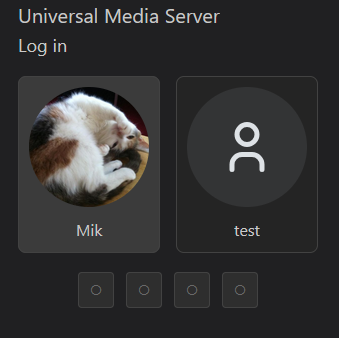
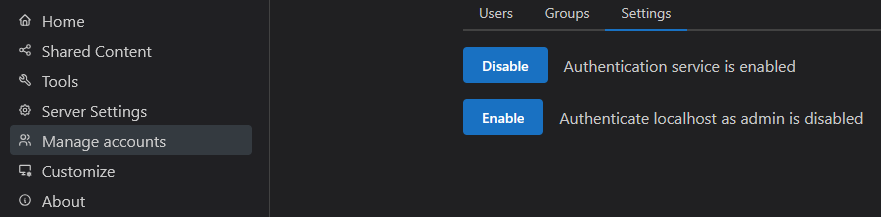
You can enable authentication settings so you need to log on to access the settings and there is even a setting to automatically log in as admin on the computer running UMS.
- Screenshot 2026-01-11 023836.png (38.57 KiB) Viewed 164309 times
- Screenshot 2026-01-11 023856.png (17.21 KiB) Viewed 164309 times
When you first installed UMS, or updated to the version that added this, you should have been asked to make an account for Admin.
It does allow you to ignore this and turn authentication off but it should prompt you again if you enable it.
If not there is a way to reset this that I can walk you though.
Only Admin has access to the settings but you can set up user accounts for each person so it saves their played status in the player and allows you to restrict access to certain folders.
Accounts can be linked to a renderer too so it does not just apply to the web player.
Re: Restrict the web settings UI to the local machine, disable remote admin
Posted: Sun Jan 11, 2026 10:40 pm
by Shangri La
Thanks for the information. From a security standpoint, best practice is to close any ports that don't need to be open. I have no need to run a web server on my network, so I want to turn it off. It doesn't sound like that's possible currently. Should I make another post in the Feature Suggestions board? I would think it should be fairly easy to add an option for the server to listen only on the loopback device instead of all network devices, in order to disable remote admin/login completely. But I admit that I don't have a good understanding of how UMS works.
This is running on my laptop, which may join any number of public networks, including being exposed directly to the Internet, port scans, etc. I could try to turn off UMS any time I'm on a public network, but I might forget, so I'd need to set up some kind of automation. Maybe that's a good idea though. I understand that I can set up an admin account and password, though I also have no need for that, since I've turned on "authenticate localhost as admin". I don't have a need for accounts at all, I'm just using it for DLNA with my TV. I'd have to be sure the admin account has a strong password, and keep track of that, and/or there is some kind of rate limiting on login attempts, and that there's no vulnerability in your web server code that could be hacked. The better solution is to not run a web server at all, where no legitimate user is ever expected to use it.
Re: Restrict the web settings UI to the local machine, disable remote admin
Posted: Mon Jan 12, 2026 1:33 pm
by mik_s
I think what you need is more in the firewall settings of your Laptop so on public networks those ports are blocked but are open on your private network.
The way UMS works is that all devices on the network can discover UMS as this is how DLNA works so is a bad idea to have it running on a computer connected to a public network.
The default port number for this is 5001 but there are probably some others used by the OS for UPnP. Port 9001 is just for the settings.
The ports are not exposed to the internet unless you set up port forwarding on the router, but with public networks you have no control over this.
The reason for the web settings is that it is hard for the devs to change the Java GUI so no longer update it, and much easier to make changes in the web interface.
This also allows access to the settings on headless systems.
Re: Restrict the web settings UI to the local machine, disable remote admin
Posted: Tue Jan 13, 2026 12:38 am
by Shangri La
If I could block port 9001 from the local network, I would. I don't ever need it to be open. But my laptop is a Mac, and the firewall doesn't let you block specific ports or interfaces, only completely block or allow an app. There might be a way to use scripting to turn on the blocking, or quit the app, based on a network change. I started looking into it, but it's a bit complicated so far. Maybe I can use a different firewall, but that's also complicated.
When I installed UMS, I just set "authenticate_localhost_as_admin = true" in the configuration file, because I didn't want to bother with yet another password. I was surprised later to find that anyone could connect to port 9001 from another computer, and get the prompt to add a user or disable authentication, though I guess I shouldn't have been. It's one thing if strangers can see my movie collection, but another if they can change the settings to share everything on my computer. I've now set up an admin password. I've also set "allowed network devices" (network_devices_filter) to only allow the TV to connect. Hopefully that will prevent anyone from accessing it, if I'm away from home.
I'd still feel better if I could stop UMS from offering a web admin interface on the local network in the first place, rather than relying on firewall blocking or a password to secure it, when I have no use for remote login. I wish it could simply be restricted to the local machine. I guess the password is good enough for my home network for now, though. For a public network I could try all the above - firewall blocking, password, network devices filter, and quitting - hopefully at least one will work!
PS, you should still probably fix the thing where the "Web settings" button disappears from the old UI if you disable the web player.